


Series Overview
MODELS – Smart Air Conditioner 12K and Smart Air Conditioner 16KCONTROL TYPE – PWM 3 Levels (AC-TFH8), PWM 4 Levels (AC-TFH12)
PROGRAMS – Cool Mode, Heat Mode, Cool/Heat Mode, Dry Mode, Fan Mode, Temperature and Humidity Triggers, Timer, Advance Programs via the AC Infinity App
SETTINGS – AI Setting, Sleep Setting, Lock/Hide Display, F° / C° / %, and More
CLIMATE SENSORS – Temperature and Humidity
Controller Diagram
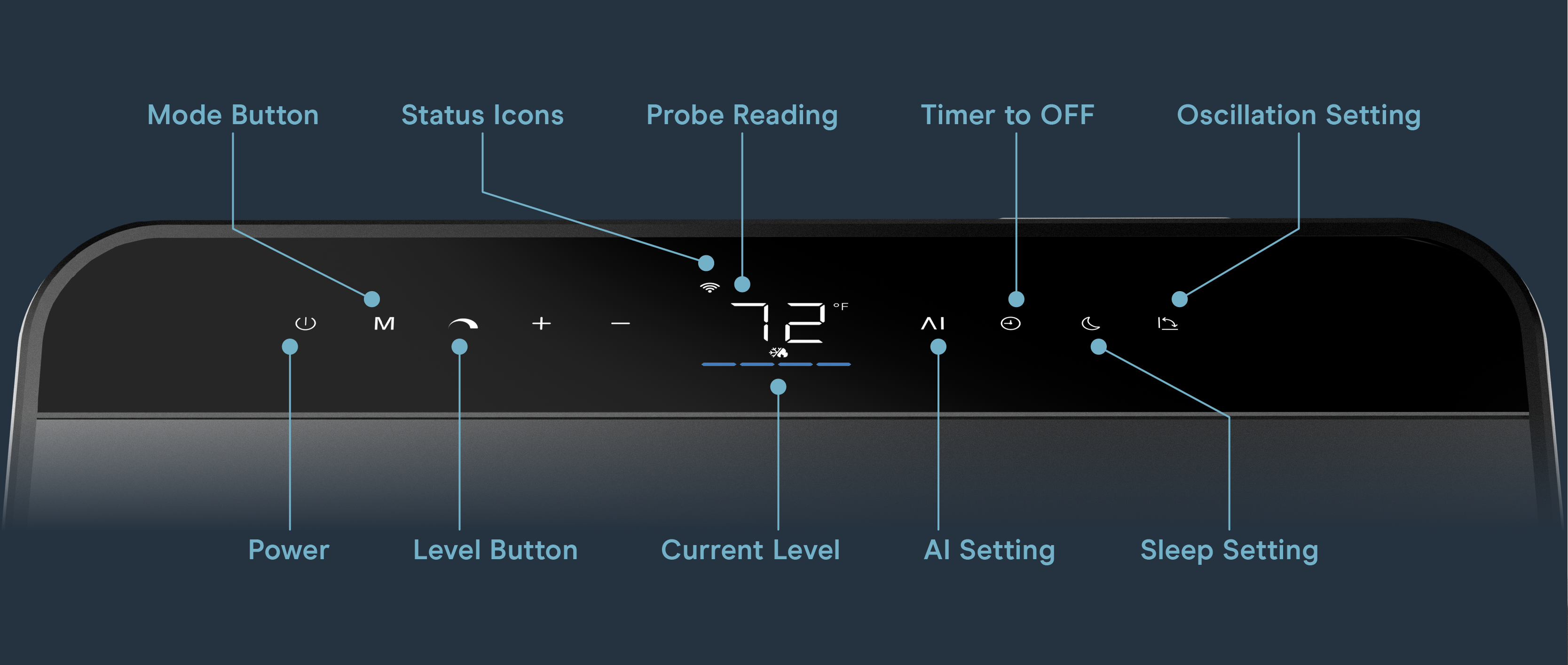
Programming Modes
Tap the mode button to cycle through Cool, Heat, Cool/Heat, Dry, and Fan modes. Press the (+) or (–) buttons to cycle through the mode’s target setting. Hold (+) to cycle past the target range until ON mode is activated.
In these target modes, the AC fan will run for 1 minute every 10 minutes after the compressor turns off to circulate internal air and maintain stable sensor readings.
Cool/Heat Mode
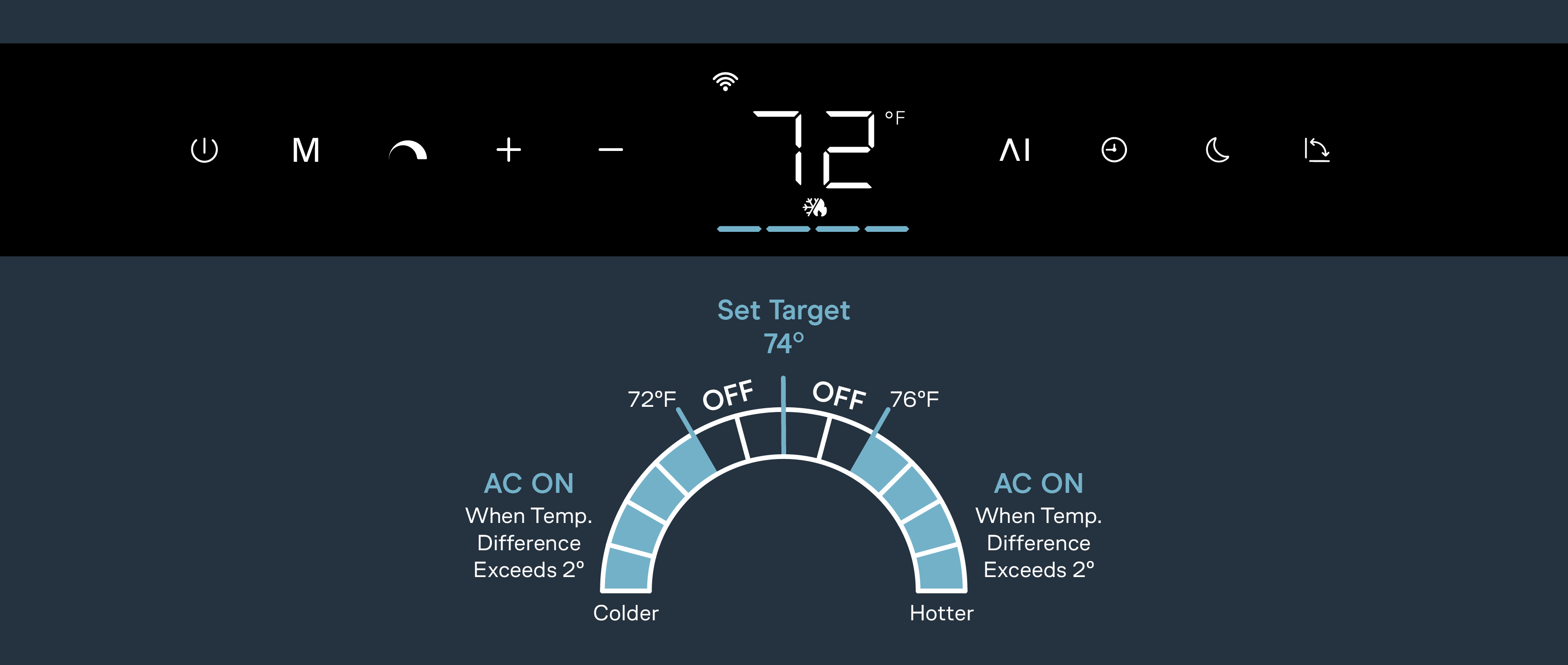
When you establish your target setting in Cool/Heat mode, your AC will activate if it reaches 2 degrees above or below your set target. While it is activated, your AC will toggle between Cool and Heat mode to stabilize the room’s climate.
AI Setting
Factors temperature and humidity to adjust output levels and deliver a true ‘feels like’ comfort for the human body. Cool, Heat, Cool/Heat, or Dry modes ONLY.
In AI Dry mode, the target humidity is automatically managed based on the current temperature and humidity to maintain optimal comfort and prevent over- or under-dehumidification. Humidity target adjustment is unavailable while AI mode is enabled.
Sleep Setting
The AC starts at level 1 while dimming the screen and muting chimes for more restful sleep. If a target is enabled, Sleep mode adjusts the temperature target automatically for better comfort overnight.
Other Settings
Factory Reset
Hold the power and mode buttons together for 3 seconds to reset your AC and restore factory settings.

Mute Sound
Hold the power and timer buttons together for 2 seconds to mute/unmute sound.

Hide Display
Hold the timer button for 3 seconds to hide the onboard display. Press any button other than the power button to turn the display back on.

Switch Pairing Mode
Hold the power button and the AI button together for 2 seconds to switch between Wi-Fi and Matter pairing modes.

Pairing the App
Hold the power button for 5 seconds to pair your AC to the AC Infinity app. If the app does not automatically detect your device, proceed to the next steps for manual pairing.
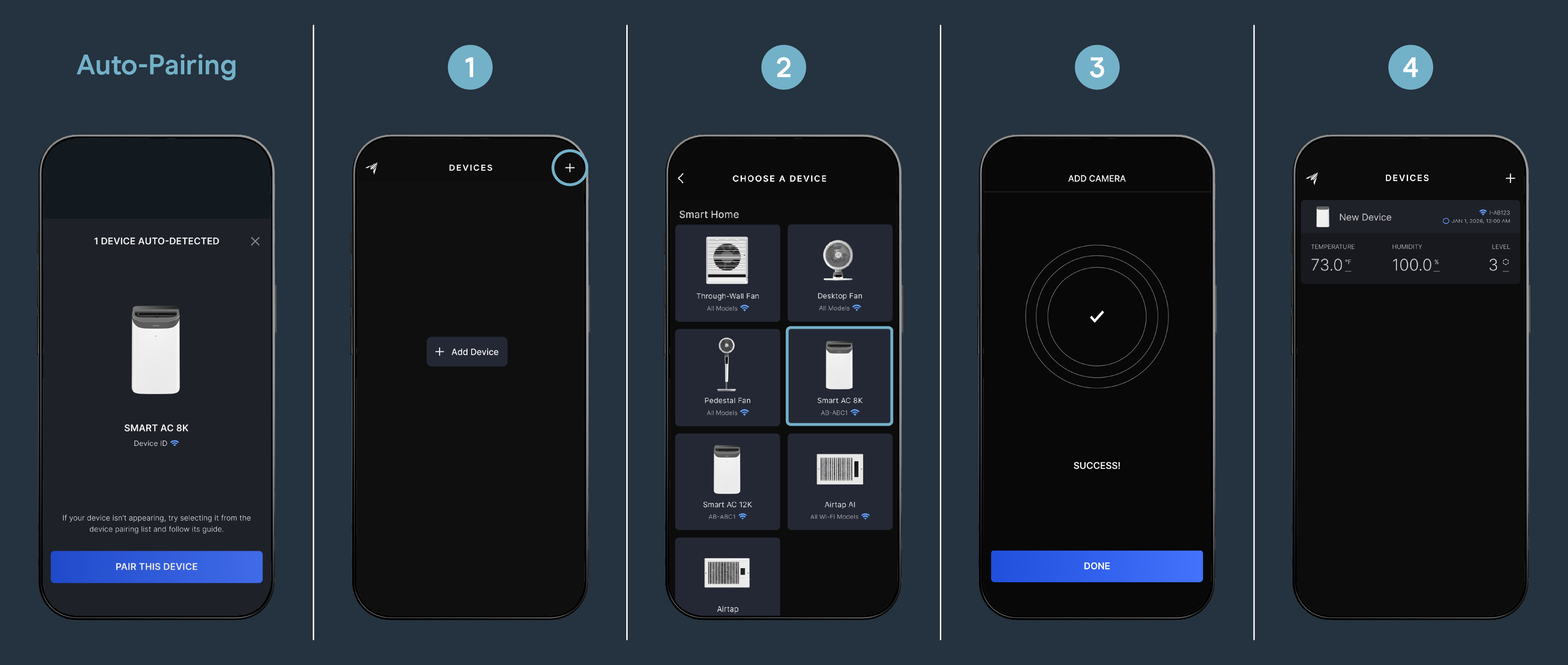
- Tap on the “+” tab to add your smart device.
- Select your fan to begin pairing.
- Tap “DONE” to complete the pairing process.
Your device will appear with a unique ID.
Alert Icons
The alert icons are displayed at the top of the screen and will flash when the controller signals an alert, notifying you of any triggered functions or alarms.

- Full Condensation Tray – Displays when the condensation tray is full. Your AC will pause programming, and its screen will flash until the water is emptied.
- No Longer Upright – “F1” displays whenever your AC falls on its side or tilts. It will pause programming, and its screen will flash until placed back at an upright position.
- Device Too Cold – “P1” displays whenever your AC’s internal temperature is too low. It will pause programming until it reaches the proper working temperature.
- Device Too Hot – “P2” displays whenever your AC’s internal temperature is too low. It will pause programming until it reaches the proper working temperature.
- Temperature Range – “P3” displays whenever the ambient temperature is out of operating range. It will pause programming until it reaches the proper working temperature.
- High Exhaust Temperature – “P4” displays whenever the exhaust temperature is too high. It will pause programming until it reaches the proper working temperature.
- Excessive Electrical Current – “P5” displays whenever an excessive electrical current is detected. It will pause programming until it reaches the proper electrical current.
- Low Voltage – “P6” displays whenever a low-voltage system is detected. It will pause programming until it reaches the proper electrical current.
- “E” or “C” Errors – Contact our customer service department for assistance.
If issues persist, contact our customer service department at support@acinfinity.com or (626) 923-6399 for product and warranty assistance.


